Introduction
I’ll admit it: Google Lens has completely changed the way I look at my garden. What used to be a guessing game — “Is this a weed or a wildflower?” —now takes just a few seconds. Point your phone at a leaf or blossom, and suddenly you’ve got a name, care notes, and even ecological context right in front of you.
For curious gardeners like us, it’s the fastest way to turn wonder into knowledge. But here’s the catch: the accuracy of Google Lens depends on how you use it. A blurry photo or the wrong angle can send you down the wrong rabbit hole. That’s why I’ve pulled together these 10 pro tips — little habits that make Lens more reliable and help you weave it seamlessly into your gardening workflow.
What Is Google Lens Plant Identification (and Why It’s So Handy)
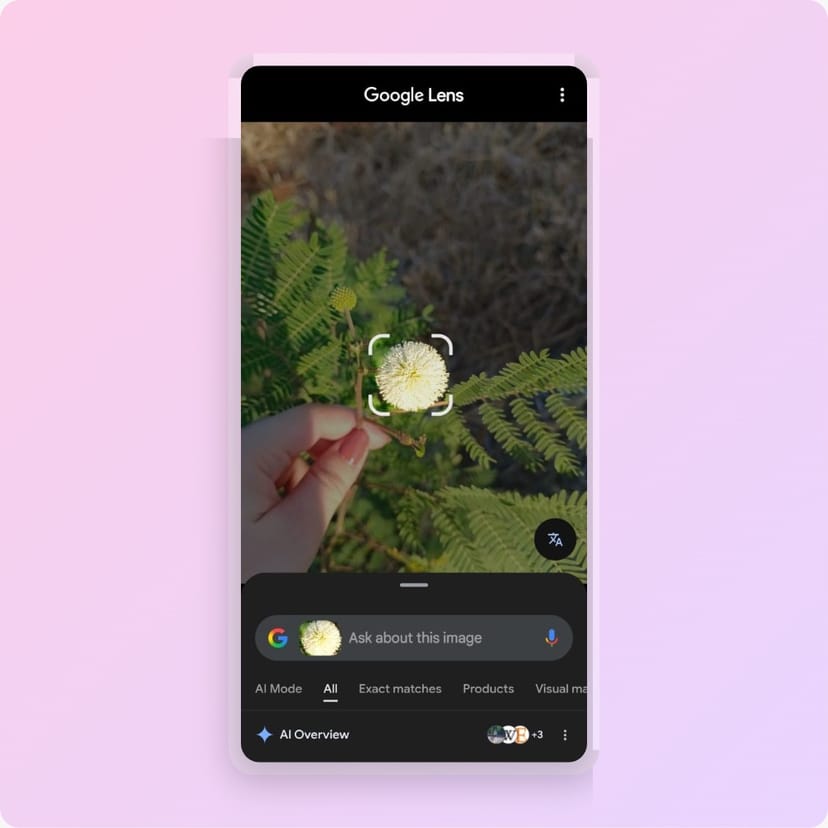
At its core, Google Lens is a visual search tool. Snap a photo, and it uses machine learning trained on millions of plant images to suggest what you’re looking at. You’ll usually get:
- A ranked list of possible matches
- Similar photos
- Links to helpful resources
It’s powerful, but not perfect. Think of Lens as your gardening assistant — quick with suggestions, but still needing your judgment and context to confirm the right answer.
How to Identify Plants with Google Lens: Step by Step
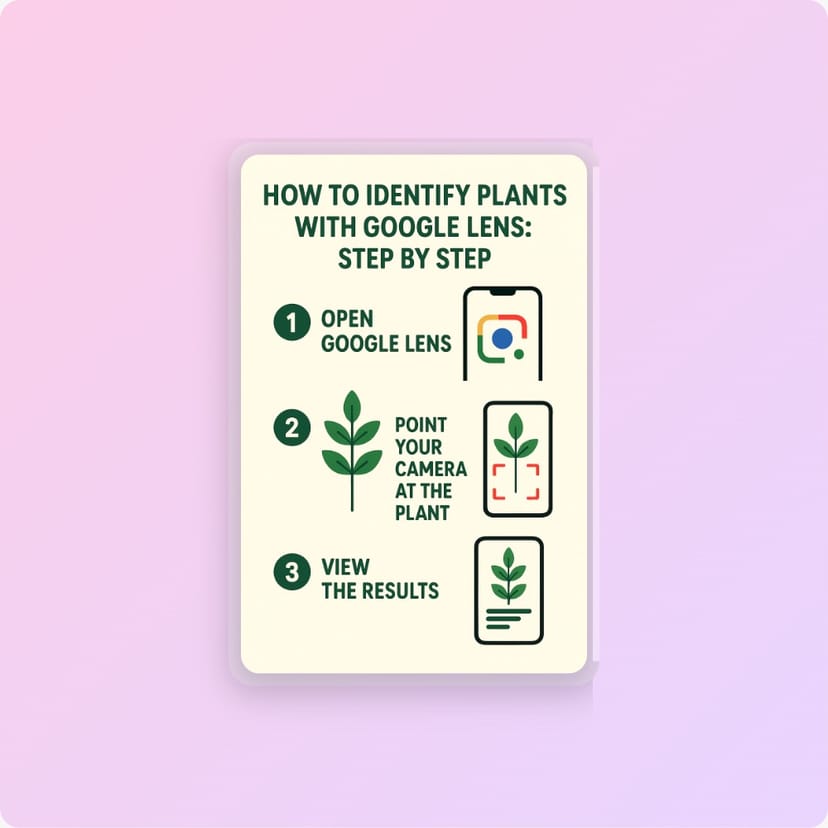
Here’s the simple routine I follow:
- Open Google Lens (standalone app, Google Photos, or the Google app).
- Frame your subject — focus on one feature like a leaf, flower, or bark.
- Tap to capture and let Lens analyze.
- Review the top matches and click through linked resources.
- Save the photo and jot down notes in your garden log.
Pro tip: Take multiple photos of different plant parts (leaf, flower, stem) to give Lens more data.
10 Pro Tips to Master Google Lens Plant Identification
- Focus on the star feature — flowers, seed pods, or leaf edges usually give the clearest match.
- Shoot from different angles — top, underside, whole plant, and close-up.
- Use natural light — avoid shadows or harsh backlighting.
- Add scale — a coin or ruler helps distinguish similar species.
- Clear the frame — move aside extra foliage or dirt.
- Try again — one bad photo can throw Lens off.
- Check regional guides — make sure the plant actually grows in your area.
- Cross-reference databases — USDA Plants Database or local horticultural sites are gold.
- Keep Lens updated — improvements roll out regularly.
- Build your own library — save labeled photos in Google Photos for easy reference.
Troubleshooting Common Issues
Sometimes Lens gets it wrong. Here’s how I troubleshoot:
- Blurry or vague photos — retake with better focus or lighting.
- Too many similar species — use context like soil type, growth habit, or bloom season.
- Hybrid or ornamental plants — rely on nursery tags or provenance, not just Lens.
- Connectivity hiccups — check app permissions and internet settings.
Real-Life Example
The other day, I spotted a mystery plant with tiny purple flowers. I snapped both the flower and leaf, ran Lens, and got three possible matches. By cross-checking bloom time and leaf texture with my regional guide, I realized it was a native wildflower, not an invasive weed.
I logged it in Google Photos with a quick care note, and now it’s part of my seasonal tracking album.
That’s the beauty of using Lens consistently: over time, your photo album becomes a living garden journal.
Advanced Tips for Power Users
- Crowdsource tricky IDs — share Lens results in local gardening forums or groups.
- Track big landscapes — use geotagging and spreadsheets to build a plant inventory.
- Think seasonal — capture features that last (seed heads, leaf scars) for winter IDs.
FAQ
How accurate is Google Lens?
Pretty good for common species, less so for rare or hybrids. Always verify with local guides.
Can it spot plant diseases?
Sometimes, but don’t rely on it. For pests or diseases, expert diagnosis is best.
Is it free?
Yes, it’s built into Google apps, though features vary by device.
Should I trust the first match?
Not blindly. Always check multiple results and compare with habitat clues.
Does it work offline?
Limited offline recognition exists, but full results need internet access.
Next Steps
Start small: practice with plants you already know to see how Lens interprets them. Build a dedicated album in Google Photos, add notes, and cross-check with trusted resources.
Over time, you’ll have a personalized plant ID library that makes gardening smoother, smarter, and way more fun.