Welcome to this HuddleMate review.
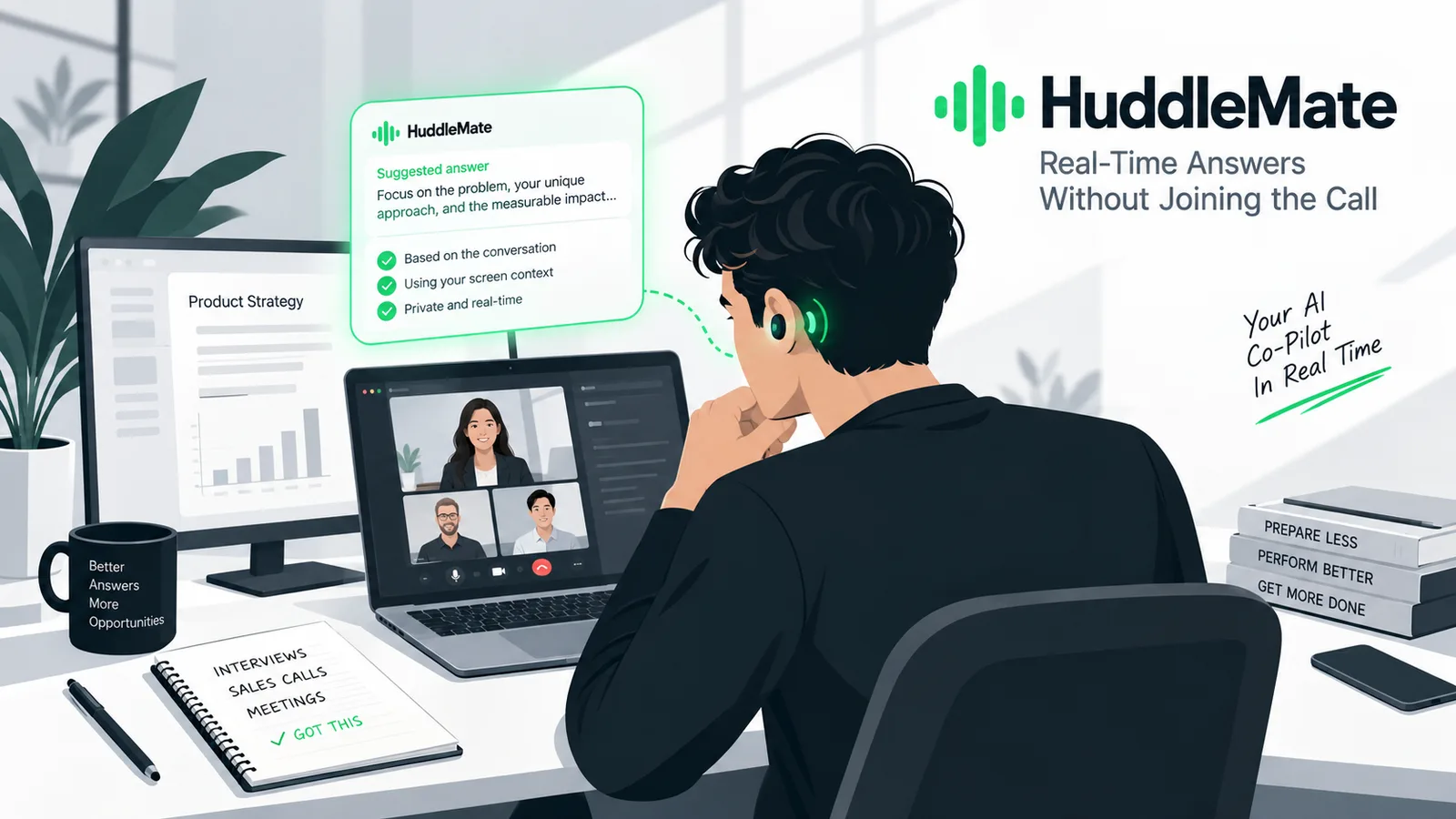
There's a specific kind of panic that only shows up in a live call. Someone asks a question you did prepare for, your mind blanks anyway, and suddenly you're buying time with "that's a great question" while you try to find the point. ChatGPT can't help you in that moment unless you alt-tab out of the meeting and start typing. Meeting bots that "join" the call as a participant create a different problem: everyone can see them.
HuddleMate is aiming at that gap. It runs privately on your device, listens to the conversation, can see what's on your screen, and surfaces a response when you ask for one — without appearing as a participant in Zoom, Google Meet, Teams, or Webex.
I signed into a real account with credits already loaded, walked the web dashboard end to end, created an Interview assistant, opened a live session and the history UI, and compared that against the marketing site, features page, and pricing. Live AI assistance works in the web app. The desktop app (Windows 10+ and macOS 13.3+) adds the private overlay, screen-share invisibility, and other desktop-specific features.
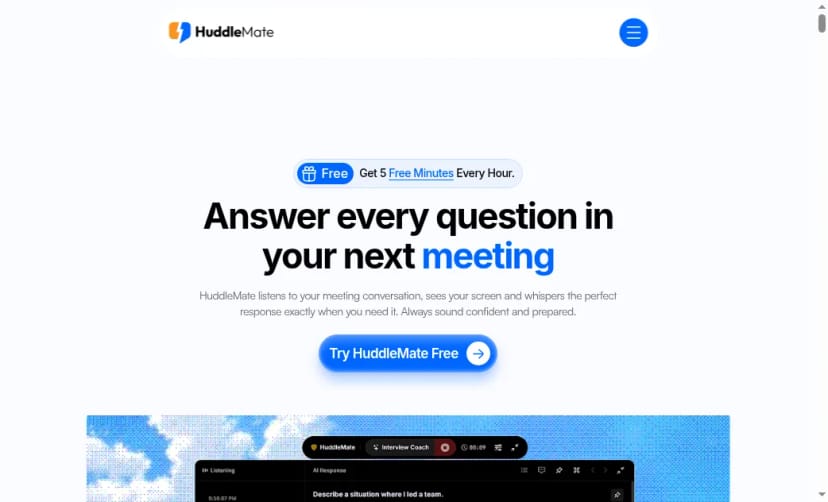
The homepage pitch is blunt: answer every question in your next meeting, with five free minutes every hour to try it.
Getting in is a normal SaaS signup, then a clear dashboard
After sign-in you land on a dashboard that greets you by name and pushes you straight into launching a co-pilot. The left nav is short on purpose: Dashboard, Assistants, Sessions, Documents, then Account extras like Audio Check and Invisibility Check.
The "Launch Now" row is the product in three cards:
- Interview — real-time interview co-pilot
- Trivia & Quiz — short answers for rapid-fire Q&A
- Custom — build your own assistant from scratch
There's also a persistent banner for the desktop app: invisibility during screen share, on-screen content capture, and an always-on-top overlay with adjustable transparency. Those are desktop extras. Live AI assistance is available in the web app as well.
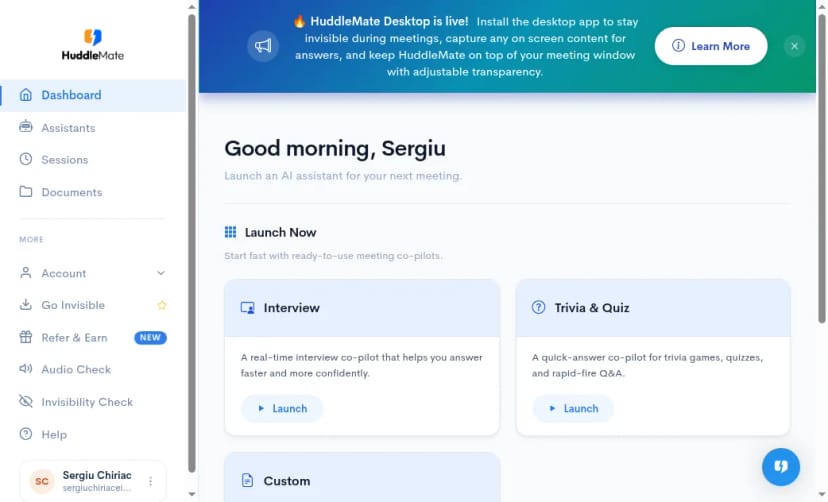
The signed-in dashboard: Launch Now cards for Interview, Trivia & Quiz, and Custom, plus the desktop-app banner.
Creating an assistant is where the product gets specific
I created an Interview assistant from the dashboard flow. The form asks for a name, co-pilot type (Interview / others / Custom), target role, and experience years. You can also attach materials — resume, job description, notes — so answers reference your background instead of generic advice.
On the Assistants page afterward, the assistant showed up as a managed object you can search and reopen. Custom creation goes further: system prompt, materials, and custom response types (name / model / system prompt per type). That last piece matters, because HuddleMate's differentiator isn't only "AI during a call" — it's being able to switch response formats during the same session instead of locking one style before you join.
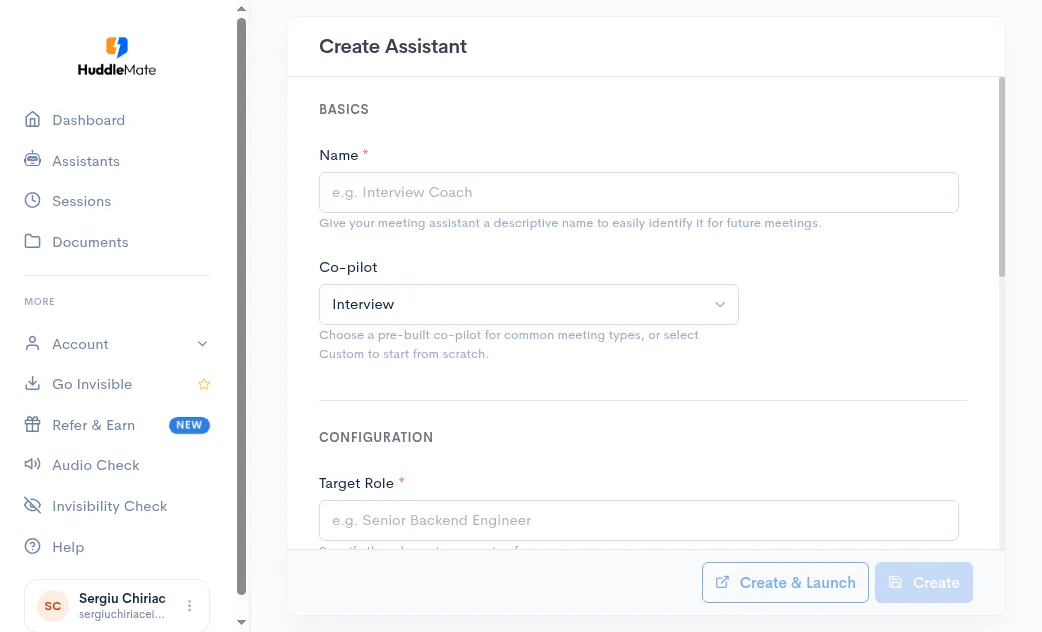
Interview assistant setup: name the co-pilot, pick Interview, set target role, then create or create-and-launch.
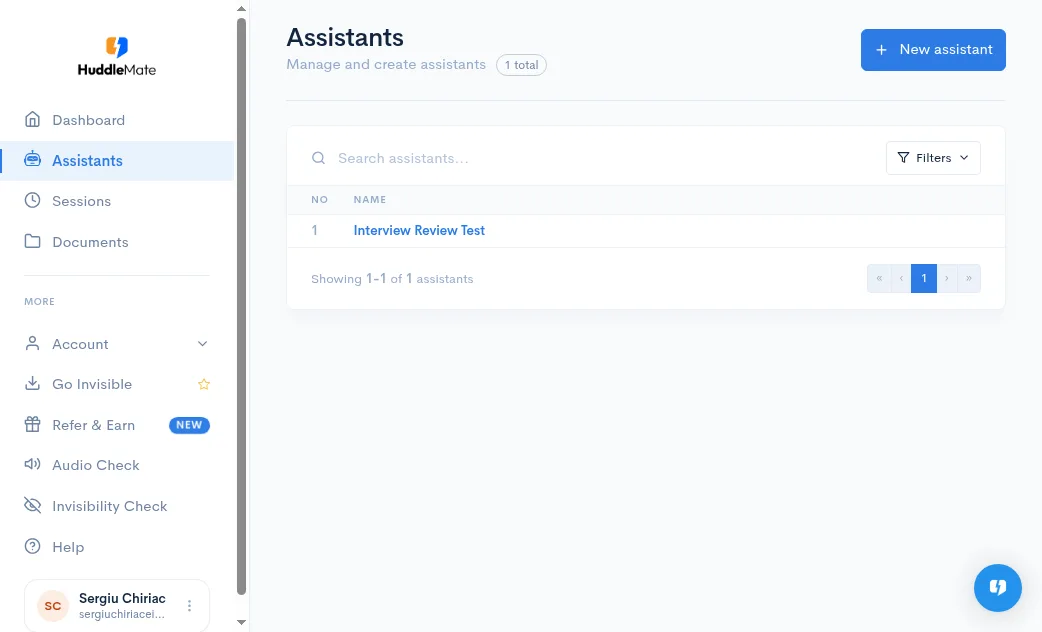
After creation, assistants live in a searchable list — I ended up with "Interview Review Test" ready to relaunch.
Documents and knowledge are first-class, not an afterthought
The Documents area supports PDF, DOCX, TXT, MD, JPG/JPEG, and PNG, up to 10 MB per file, with name and description fields. Materials can also be uploaded in-flow, selected from My documents, or typed/pasted.
This is the part that separates a meeting whisperer from a generic chatbot: if you load a resume and a job description before an interview, the tool has something real to ground answers in. Same idea for sales notes or product docs before a client call.
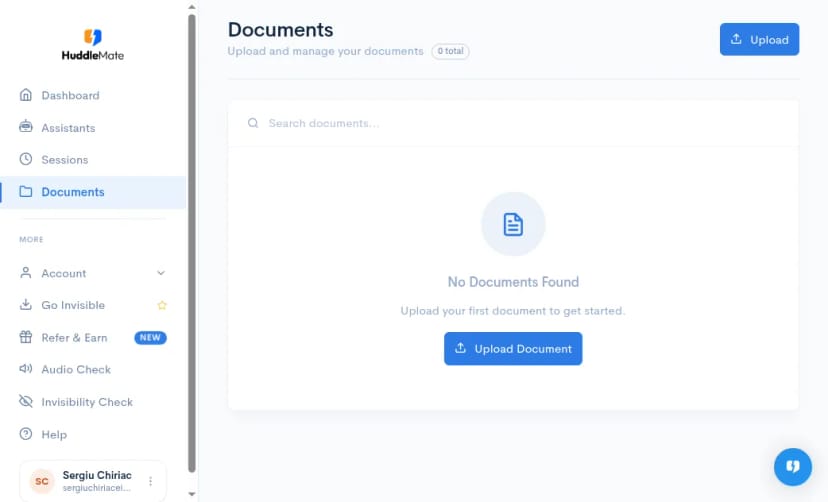
Documents is empty until you feed it — upload UI is clear, with sensible file-type limits.
The live session UI is built around listen → generate → review
Launching Interview opens a live session, in the web app, with live transcription, AI Insights / Generate, an "Ask a question" box, and optional screen share. The loop is the product: meeting audio is captured, you generate when you need help, and you get a spoken-ready answer shaped by the conversation plus your materials. That live assistance is not desktop-only. The desktop app adds a private overlay on top of the same flow, plus invisibility during screen share and other desktop-specific features.
I also opened Sessions afterward. History is structured the way you'd want for a real product: each session has Transcript and AI Responses tabs, plus metadata (assistant used, start/end time, duration). A live session records the transcript and the AI responses together, so you can review what was asked and what the assistant suggested after the call.
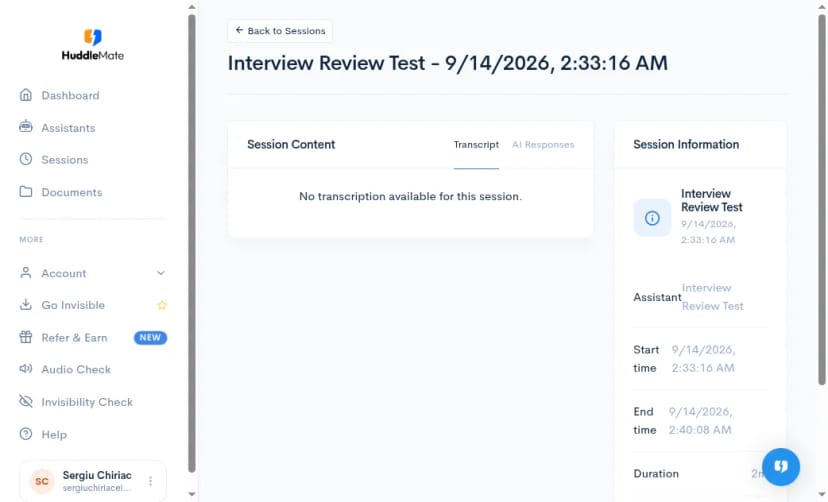
Session history after a short test run: Transcript and AI Responses tabs, assistant name, start/end time, duration.
What actually differentiates it from "just use ChatGPT"
From the product surface and feature set, the meaningful differences are:
Low-latency, in-flow answers — designed to be fast enough to use mid-conversation, not after an awkward pause while another tab thinks. Response types during the session — short mode vs STAR-style storytelling vs other formats, switchable when the question changes. Full conversation listening — including your answers and follow-ups, not only the other person's last sentence. Custom knowledge — resumes, docs, notes grounding the replies. Screen-aware help — answers based on what's visible on screen (coding problems, shared decks, dashboards). Headphone / EarPods audio capture — a practical edge when competing tools struggle with headset audio. Invisible to normal screen sharing — desktop overlay designed so HuddleMate itself doesn't show up in Zoom / Meet / Teams / Webex shares. Session history — audio, transcription, and AI responses kept for later review. Enterprise / team support — invite members and manage usage centrally.
The features page even filters Desktop vs Web, which is a useful honesty signal: not every capability is identical on both surfaces.
Features are split across web and desktop, so you can see which surface owns which capability.
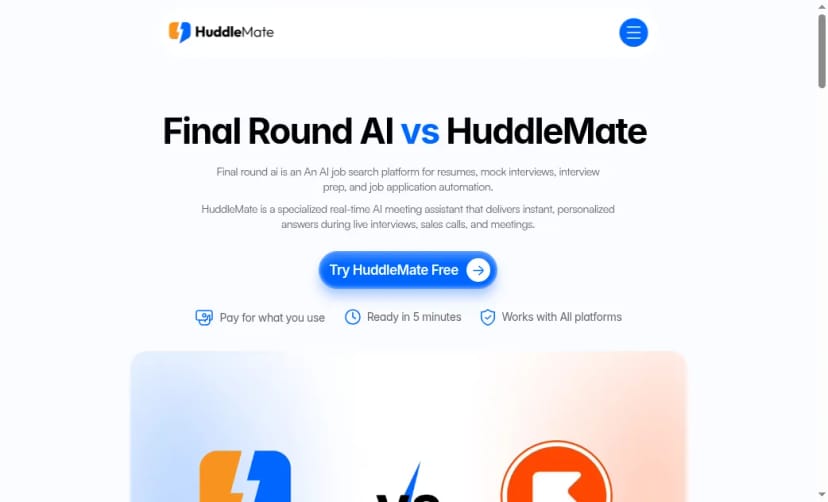
HuddleMate positions itself against broader interview platforms as a specialized real-time meeting assistant.
Pricing is usage-based, which fits the use case
HuddleMate does not use a subscription. You buy credits, you are billed per minute, and those credits never expire.
What I saw:
- Free: 5 free minutes every hour, with all features — enough to try the full product without a card.
- Credits: $9.99 for 60 credits. 1 credit = 1 minute, billed per minute. No subscription, and credits never expire.
- Enterprise: contact sales — team invites, central usage, security/integrations language.
Inside the account Credits page, balance is shown in credits. My test account started at 300 credits and showed 298 after short start attempts — consistent with per-minute metering.
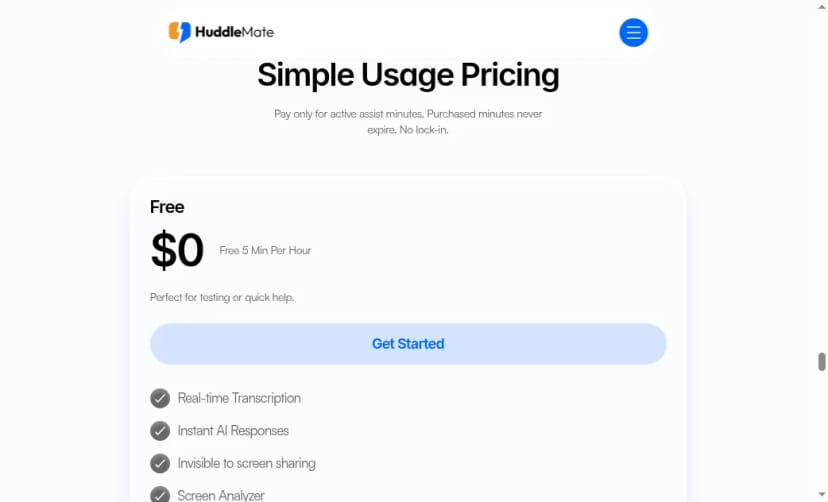
Marketing pricing leads with 5 free minutes every hour, with all features, before paid credits.
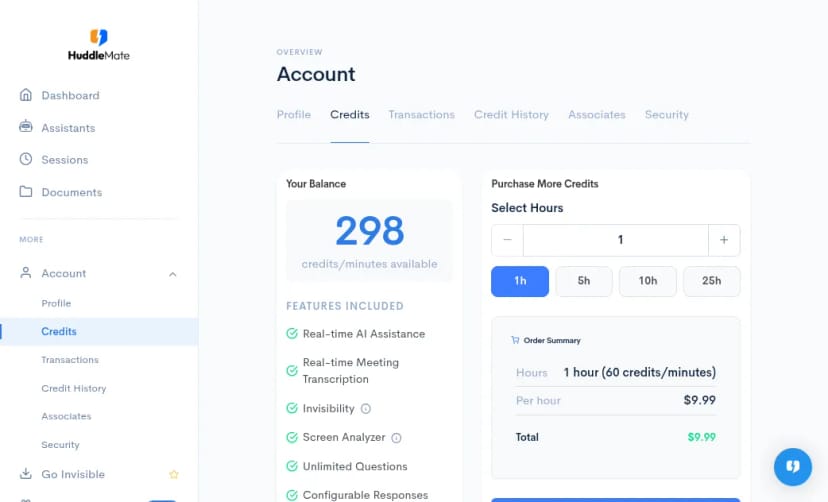
Inside the account: credit balance and included features. $9.99 buys 60 credits — 1 credit equals 1 minute, billed per minute, and credits never expire.
Who should use it
- Job candidates who want structured answers in live interviews, grounded in their own resume and the role
- Sales and customer-facing people who blank on a metric or objection mid-call and need a fast, private prompt
- Anyone doing high-stakes meetings where searching docs while people wait is the failure mode
- Teams that want shared credits and centralized member management rather than personal ChatGPT tabs
- People who already decided they want a stealth desktop overlay and care about screen-share invisibility and headset audio
Who should pause: if you only need post-call summaries, a meeting-notetaker bot that joins the call may be enough. If you're on Linux, the desktop app isn't listed (Windows/macOS only as of this review), so the full overlay experience isn't available there yet. And if your ethics line is "no AI assistance in interviews at all," this category of tool — including HuddleMate — won't clear that bar; it's explicitly built for live private assistance.
FAQ
Will other people on the call see HuddleMate?
HuddleMate does not join as a visible meeting participant. On desktop, it's designed so the assistant UI stays out of normal screen shares on Zoom, Google Meet, Teams, and Webex. Always verify with their Invisibility Check before a high-stakes call.
Do I need the desktop app?
Not for live AI assistance. That works in the web app. The desktop app adds the private overlay, screen-share invisibility, and other desktop-specific features. The web app also covers assistants, documents, credits, and session history.
Can I switch answer styles mid-meeting?
Yes. That's one of the clearer differentiators versus tools that lock a single response format before the session starts. Short answers and STAR-style narratives are the examples they lean on.
Does it use my own documents?
Yes. You can upload resumes, job descriptions, notes, and other materials so responses are grounded in your context rather than generic advice.
How does pricing work?
There is no subscription. $9.99 buys 60 credits, and 1 credit equals 1 minute, billed per minute. Credits never expire. You also get 5 free minutes every hour, with all features. Enterprise is custom for teams.
Does unused time expire?
Purchased credits never expire. The free allotment is 5 minutes every hour, with all features.
What meeting apps does it work with?
It's positioned as working with major meeting apps without joining them — listening privately on your device rather than appearing as a bot in the participant list.
Conclusion
HuddleMate is a focused bet: private, real-time assistance during live conversations, with enough product surface (assistants, documents, response types, session history, usage-based credits) to feel like a real workflow instead of a demo overlay.
What I verified hands-on was the dashboard, Interview assistant creation, documents, credits metering, session history, and the live session flow in the web app. The desktop app is the additional layer: a private overlay, invisibility during screen share, and other desktop-specific features. If you're evaluating the overlay, install the desktop app on Windows or Mac, run Audio Check and Invisibility Check, and do one practice call with your own resume loaded.
What I liked:
- Clear Launch Now model (Interview / Trivia / Custom) instead of a blank chat box
- Assistant creation that includes materials and configurable response types
- Documents treated as a real input, not a buried setting
- Session history with transcript and AI response tabs
- No subscription: $9.99 for 60 credits (1 credit = 1 minute), billed per minute, credits never expire, plus 5 free minutes every hour with all features
- Explicit desktop features for screen-share invisibility, screen awareness, and overlay control
- Team/enterprise path for shared usage instead of only solo seats
Things to keep in mind:
- Live AI assistance works in the web app. The desktop app adds the private overlay, invisibility during screen share, and other desktop-only features
- Desktop downloads currently target Windows and macOS, not Linux
- Live quality depends heavily on audio permissions — run Audio Check before a real meeting
- This is a live-assistance tool, not a substitute for prep. Answer quality depends on the relevance and quality of the uploaded materials
- As with every tool in this category, using AI assistance in interviews or client calls has workplace and ethics implications you should decide for yourself
Try it: https://huddlemate.ai/
If you are looking at the other side of the stack, giving an agent access to paid APIs through one connection and one balance, see the Agentik review.